Networking

Secure Compute
Secure Compute
Secure Compute creates private connections between your Vercel Functions and your backend infrastructure like databases, APIs, or any private services you're running.
 Enterprise plans
By default, Vercel deployments can come from any IP address. Secure Compute gives you dedicated static IPs, so you can tighten your backend's access controls to only allow traffic from your specific Vercel infrastructure.
Copy page
When you enable Secure Compute on your project, your deployments and build container get their own dedicated network with static IP addresses in a region you choose. Your traffic stays completely separate from other customers.
Want to talk to our team?
This feature is available on the Enterprise plan.
How Secure Compute works
You can provision and manage your own Secure Compute networks directly from the Vercel dashboard. Create networks for different teams, projects, or environments, all through self-service.
Want to talk to our team?
This feature is available on the Enterprise plan.
Here's what you get with Secure Compute:

You can create Secure Compute networks directly from the Vercel dashboard:
- Your own dedicated private network inside a VPC
- Static IPs that won't change, plus a NAT Gateway
- Complete isolation, so only your specified resources can reach your Vercel Functions
- Navigate to your team's Settings → Networking.
- Click Create Network to start the setup process.
- Select your desired Region: choose the region closest to your backend infrastructure for best performance.
- Optionally expand Advanced options to configure:
- CIDR Address Block: Specify a custom private IPv4 address range.
- Availability Zones: Select specific AWS Availability Zones within your chosen region.
- Click Next to review your settings.
- Click Create Network to provision your network.
Once created, your network includes:
- A pair of dedicated IP addresses
- AWS account ID
- AWS region based on your selection
- AWS VPC ID
- CIDR block based on your selection
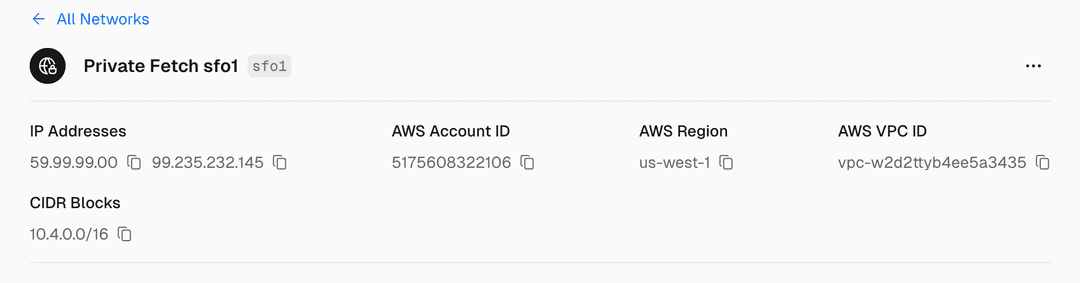


When you enable Secure Compute on a project, Vercel attaches your project's build container and subsequent deployment inside a Secure Compute network with a specific IP address pair ( dedicated IP). You can choose to exclude the build container from the private network.
Secure Compute networks and dedicated IP addresses
Each private network has its own dedicated IP pair and is isolated from others, ensuring no sharing across teams. You can assign multiple projects to a Secure Compute network, but each project belongs to only one active and one passive network.
You can create multiple Secure Compute networks for your team directly from the dashboard. For example, separate networks for different projects, environments, or teams. Navigate to your team's Settings → Networking and click Create Network to add additional networks.
Once your IP pair is ready, add it to your backend's access control list. You'll still need to use a username/password or authentication key on top of the IP filtering. The IPs alone aren't enough.
Specific region
When you create a Secure Compute network, you select the Vercel Function region where it will be provisioned. For the best performance, pick the same region where your backend runs.
Vercel applies Secure Compute to Vercel Functions using the following runtimes:
The Edge Runtimeis not supported meaning features like Routing Middleware and Vercel Functions using the edge runtime will not use the provided dedicated IP addresses.
Secure Compute supports automatic region failover using the active and passive network concept. Each project environment can have:
- Active Network: The primary Secure Compute network where your functions run
- Passive Network: A secondary network in a different region for automatic failover
To set up region failover:
- Create networks in different regions: Navigate to your team's Settings → Networking and click Create Network to create Secure Compute networks in your primary and failover regions.
- Connect project environments: In your project's Settings → Networking, configure each environment (Production, Preview, etc.) with an Active Network (primary) and an optional Passive Network (failover).
- Automatic failover: When enabled, Vercel automatically switches to the passive network if the primary region becomes unavailable, ensuring your Vercel Functions continue to operate.
Add a project to your Secure Compute network
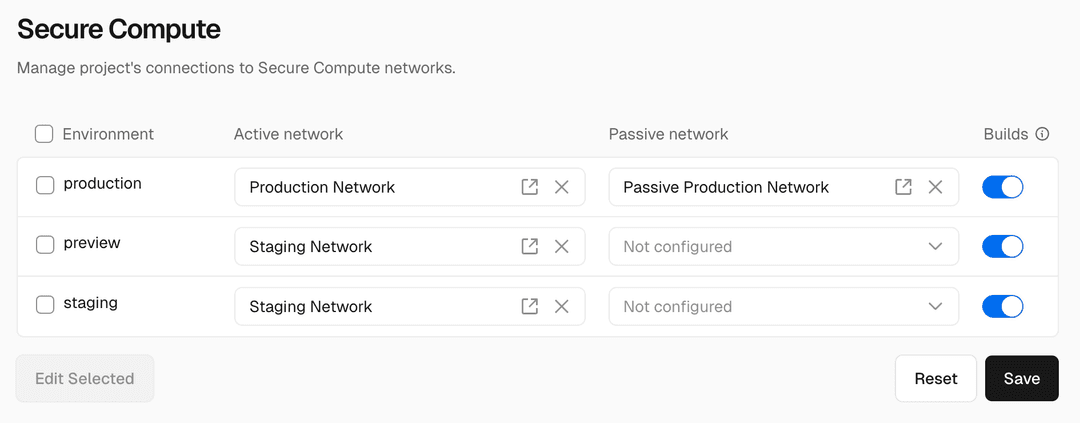
To add a project to your Secure Compute network:
- Navigate to your project's Settings → Networking.
- For every environment you want to connect to Secure Compute:
- Select an Active Network.
- Optionally select a Passive Network to enable passive failover.
- Optionally enable Builds to include the project's build container in the network.
- Click Save to persist your changes.
Adding a project to a Secure Compute network. One environment at a time.
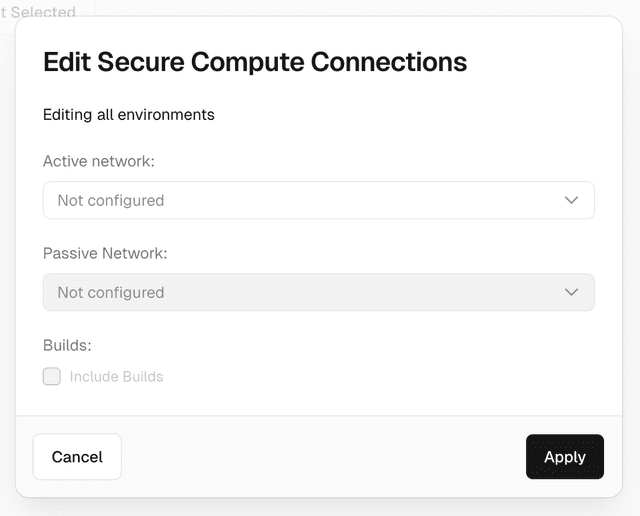
To change multiple environments at once:
- Select the environments using checkboxes or use the checkbox in the table header to select all environments.
- Click Edit Selected.
- In bulk edit modal:
- Select an Active Network.
- Optionally select a Passive Network to enable passive failover.
- Optionally check Include Builds to include the project's build container in the network.
- Click Apply to modify the selected environments.
- Click Save to persist your changes.
Adding a project to a Secure Compute network. Multiple environments at once.
When you add a project to a Secure Compute network, you can choose to include the project's build container in the network. This is useful if your application calls your data sources at build time.
You can opt the build container out of using the dedicated IP addresses. This is useful if your application only calls your data sources at run time and not at build time.
By opting out of including the build container, you will not incur the 5s delay when provisioning a secure build container.
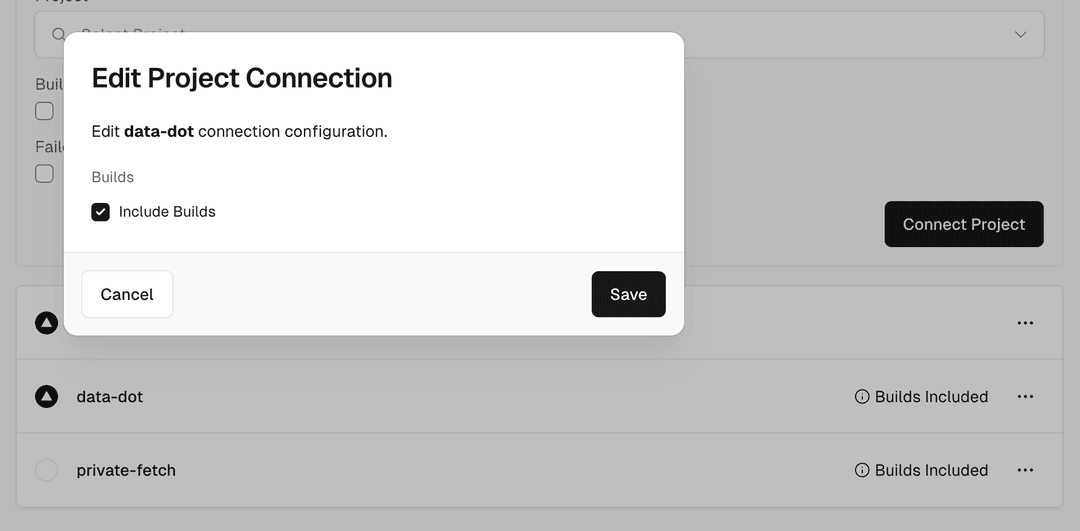
To manage the build container during the project connection process select Include Builds.
To manage the build container after the project is connected to the Secure Compute network:
- Navigate to your team's Settings → Networking.
- Select a private network from the list.
- Open Projects in the sidebar.
- Click the

- Check/uncheck Include Builds to include/exclude the project's build container in the network.
- Click Save.
Exclude your build from the private network.
Multiple Secure Compute networks
You can use one network with multiple projects in the same team. In this case, the same IP pair is shared across multiple projects.
If you require additional security or have a large team, you can have one network for each project so that each project will have its own dedicated IP pair.
Connecting a project to multiple networks across different regions is currently not supported. Each project environment can only be linked to a single active network within a single region. A passive network in a different region may only be used for failover.
VPC peering
Virtual private cloud (VPC) peering is a method of connecting two VPCs in the same or different region. When you use Secure Compute, Vercel accepts a VPC peering connection between your Vercel Secure Compute network and your AWS VPC.
To set up VPC peering:
- Create a Secure Compute network: Navigate to your team's Settings → Networking and click Create Network. Select your desired region and optionally specify a CIDR block. The CIDR blocks of your Secure Compute network and your AWS VPC must not overlap.
- Set up peering in AWS: In your AWS VPC dashboard, configure the peering connection by copying the values from your Secure Compute network settings, and pasting in the AWS VPC peering connection settings:
- Requester VPC ID: Your VPC ID
- Account ID: The AWS account ID
- Accepter VPC ID: Your Vercel Secure Compute network's VPC Peering ID
- Region: Your Vercel Secure Compute network's region
- Create peering connection: In the AWS VPC peering connection settings, click Create Peering Connection to establish the connection.
- Accept peering connection: Go back to your Vercel dashboard and click Accept to accept the connection.
- Update route tables: Go to AWS's VPC dashboard, select Route Tables, and configure routing to allow traffic from Vercel's CIDR block.
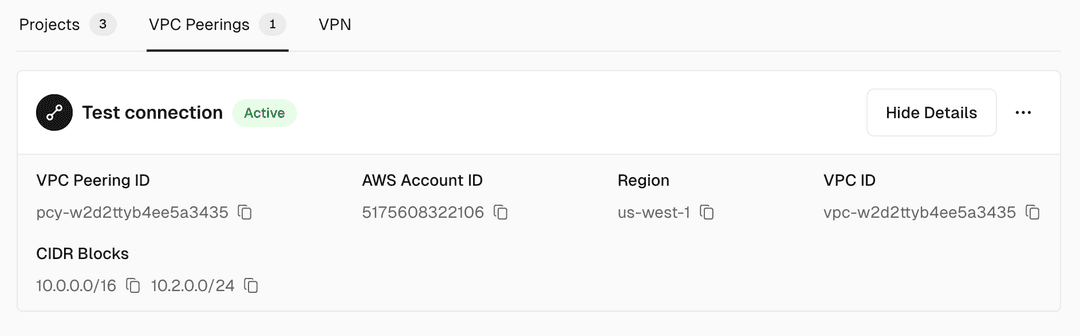
The connection can be deleted from either the Vercel dashboard, or the AWS VPC dashboard.
VPN support
Because Secure Compute gives you a dedicated network that Vercel runs on your behalf, you can establish private connectivity with networks in any cloud provider, including your own data centers. Where VPC peering covers AWS, a site-to-site (S2S) VPN terminated on your Secure Compute network covers everything else:
- Microsoft Azure: connect to an Azure Virtual Network. Once the connection is established, your Vercel Functions can reach Azure services exposed in the same network, including VMs, Kubernetes clusters, or platform services through Private Endpoints. See Using Vercel with Microsoft Azure.
- Google Cloud: connect to a Google Cloud VPC network and the services running inside it.
- On-premises and other environments: connect to a data center or any other network that terminates a standard site-to-site VPN.
If your current security and compliance obligations require more than dedicated IP addresses, contact us for guidance related to your specific needs.
Want to talk to our team?
Private Data Transfer is billed at $0.15/GB only for traffic that leaves the private network via the public internet.
Data transferWhen data transfer costs apply:
Secure Compute is available as an Enterprise feature. Contact your Vercel account team for pricing.
Schedule CallWhen connected to a Secure Compute network, builds experience up to a 5s delay as they provision a secure build container. When this happens, your build is marked as Provisioning Container in the dashboard.
You can reach our customer support team by emailing info@yourcompany.example.com, calling +1 555-555-5556, or using the live chat on our website. Our dedicated team is available 24/7 to assist with any inquiries or issues.
We’re committed to providing prompt and effective solutions to ensure your satisfaction.
We offer a 30-day return policy for all products. Items must be in their original condition, unused, and include the receipt or proof of purchase. Refunds are processed within 5-7 business days of receiving the returned item.
Max number of VPC peering connections
Most of the features of Vercel Functions are fully supported on Secure Compute except for the following beta enhancements that are not yet available:
Max projects per network
Last updated September 15, 2026
Cross-link map: Secure Compute (/docs/networking/secure-compute)From the Vercel docs graph (built 2026-09-21T05:26:59.511Z), spanning vercel.com docs + KB, nextjs.org, ai-sdk.dev, and other Vercel documentation sites. Full graph as JSON: https://vercel.com/docs/graph.jsonSemantically closest pagesNetworking — Connect your Vercel projects to backend services with static IPs and secure networking options.Static IPs — Access IP-restricted backend services through shared static egress IPs for Pro and Enterprise teams.Can I get a fixed IP address for my Vercel deployments? — Vercel deployments use dynamic IPs by default. Learn how Static IPs, Secure Compute, and AWS PrivateLink give you a fixeVercel Pricing — Choose a Vercel plan and compare features and usage pricing.Secure Compute is now self-servePrerequisitesNetworking — Connect your Vercel projects to backend services with static IPs and secure networking options.This page links to (16)Builds — Understand how the build step works when creating a Vercel Deployment.Vercel Functions — Build API routes, webhooks, and agent request handlers with Vercel Functions, then test and debug them with Vercel CLI.Configuring Maximum Duration for Vercel Functions — Learn how to set the maximum duration of a Vercel Function.Configuring regions for Vercel Functions — Learn how to configure regions for Vercel Functions.Container Images — Deploy OCI container images with a Dockerfile or Containerfile on Vercel Functions.Vercel Functions Limits — Learn about the limits and restrictions of using Vercel Functions.Edge Runtime — Learn about the Edge runtime, an environment in which Vercel Functions can run.Using the Go Runtime with Vercel Functions — Learn how to use the Go runtime to run Go APIs on Vercel.Using the Node.js Runtime with Vercel Functions — Learn how to use the Node.js runtime to create functions and deploy Node.js servers on Vercel.Using the Python Runtime with Vercel Functions — Learn how to use the Python runtime to run Python applications on Vercel.Using the Ruby Runtime with Vercel Functions — Learn how to use the Ruby runtime to compile Ruby Vercel Functions on Vercel.Using Vercel with Microsoft Azure — Run your frontend on Vercel alongside backends hosted in Microsoft Azure, with private network connectivity, keyless autStatic IPs — Access IP-restricted backend services through shared static egress IPs for Pro and Enterprise teams.Projects overview — A project is where you deploy and operate frontend apps, APIs, backends, containers, and agent workloads on Vercel.Routing Middleware — Learn how you can use Routing Middleware, code that executes before a request is processed on a site, to provide speed aHow can I allowlist IP addresses for a deployment? — Vercel deployments use dynamic outbound IPs by default. Learn how to allowlist IP addresses for a deployment with StaticPages that link here (32)By site: vercel-changelog (2) · vercel-kb (9) · vercel-docs (21)From vercel-changelogSecure Compute and Static IP builds start 64% fasterVercel Functions can now be up to 5GB in package sizeFrom vercel-kbDurable agent approval workflows on Vercel — How enterprise architects choose a stack and decide where to run durable, human-in-the-loop agent approval workflows onApplication authentication on Vercel — Secure application authentication on Vercel across layers: proxy checks, the Data Access Layer, PPR-safe rendering, andCan I get a fixed IP address for my Vercel deployments? — Vercel deployments use dynamic IPs by default. Learn how Static IPs, Secure Compute, and AWS PrivateLink give you a fixeRunning Docker on Vercel vs Render — Compare how Vercel and Render run Docker workloads, including deployment model, scaling, image sources, state, and netwoDoes Vercel support Docker deployments? — Vercel supports deploying OCI-compatible container images through Vercel Functions and Vercel Container Registry, with AHow to build and maintain HIPAA-compliant applications on Vercel — Deploy HIPAA-compliant healthcare apps on Vercel with built-in security, BAAs, and scalable serverless infrastructure.How can I allowlist IP addresses for a deployment? — Vercel deployments use dynamic outbound IPs by default. Learn how to allowlist IP addresses for a deployment with StaticDoes Vercel have a SOC 2 Type 2 attestation? — Vercel holds a SOC 2 Type 2 attestation for Security, Confidentiality, and Availability. See what the report covers, howProduction architecture for a RAG chatbot on Vercel — Architect a production RAG chatbot on Vercel Functions with Fluid compute, AI Gateway, and a region-pinned vector store.From vercel-docsElysia on Vercel — Build fast TypeScript backends with Elysia and deploy to Vercel. Learn the project structure, plugins, middleware, and hExpress on Vercel — Deploy Express applications to Vercel with zero configuration. Learn about middleware and Vercel Functions.Fastify on Vercel — Deploy Fastify applications to Vercel with zero configuration.Koa on Vercel — Deploy Koa applications to Vercel with zero configuration.NestJS on Vercel — Deploy NestJS applications to Vercel with zero configuration.Configuring Maximum Duration for Vercel Functions — Learn how to set the maximum duration of a Vercel Function.Configuring regions for Vercel Functions — Learn how to configure regions for Vercel Functions.Container Images — Deploy OCI container images with a Dockerfile or Containerfile on Vercel Functions.Vercel Functions Limits — Learn about the limits and restrictions of using Vercel Functions.Runtimes — Runtimes transform your source code into Functions, which are served by our CDN. Learn about the official runtimes suppoUsing Vercel with Microsoft Azure — Run your frontend on Vercel alongside backends hosted in Microsoft Azure, with private network connectivity, keyless autIntegrating Vercel and Kubernetes — Deploy your frontend on Vercel alongside your existing Kubernetes infrastructure.Networking — Connect your Vercel projects to backend services with static IPs and secure networking options.Static IPs — Access IP-restricted backend services through shared static egress IPs for Pro and Enterprise teams.Vercel Enterprise Plan — Learn about the Enterprise plan for Vercel, including features, pricing, and more.Production checklist for launch — Ensure your application is ready for launch with this comprehensive production checklist by the Vercel engineering team.Static Configuration with vercel.json — Learn how to use vercel.json to configure and override the default behavior of Vercel from within your project.Programmatic Configuration with vercel.ts — Define your Vercel configuration in vercel.ts with @vercel/config for type-safe routing and build settings.Transferring a project — Learn how to transfer a project between Vercel teams.Security & Compliance Measures — Learn about the protection and compliance measures Vercel takes to ensure the security of your data, including DDoS mitiFirewall concepts — Understand the fundamentals behind the Vercel Firewall.
The maximum number of VPC peering connections that can be established per network is 50.
Next
- Extended max duration beta: The standard maximum of 800 seconds applies on Pro and Enterprise plans.
- Large Functions beta: The standard bundle size limit of 250 MB applies, with a 500 MB limit for Python.
- Container Images beta: Standard function deployments are unaffected.
PrivateLink
A Secure Compute network supports up to 100 projects. If you need to connect more projects, create additional Secure Compute networks and split projects across them.
Previous
Was this helpful?


