

Vercel allows for automatic deployments on every branch push and merges onto the production branch of your GitHub, GitLab, Bitbucket, Origin, and Azure DevOps Pipelines projects.
Using Git with Vercel provides the following benefits:
- Preview deployments for every push.
- Production deployments for the most recent changes from the production branch.
- Instant rollbacks when reverting changes assigned to a custom domain.
When working with Git, have a branch that works as your production branch, often called main. After you create a pull request (PR) to that branch, Vercel creates a unique deployment you can use to preview any changes. Once you are happy with the changes, you can merge your PR into the main branch, and Vercel will create a production deployment.
You can choose to use a different branch as the production branch.
Notification
Email from GitHub, GitLab, or Bitbucket
Git provider emails
The deployment_status Events control in your project's Git settings. See Silence deployment notifications on pull requests.
Where to manage it
Your Git provider's notification preferences. See Git provider emails.
Vercel bot comments on GitHub pull requests or commits
Notifications sent by Vercel
GitHub deployment activity on a pull request
Choose where to change notification settings based on the source of the message:
Your project's Git settings. See Silence GitHub comments.
Your Git provider controls email delivery for repository activity and CI workflows. Adjust the preferences for the repository or event type generating the email:
- GitHub: Configure email delivery for watched repositories and conversations. If you deploy through GitHub Actions, review workflow-run notifications separately.
- GitLab: Configure notification levels globally, per group, or per project. Use a custom level to choose the events you receive, including pipeline events when you use GitLab CI/CD.
- Bitbucket: Manage email notifications and watched activity in your personal Bitbucket settings.
Changing your provider's email preferences affects your notifications. Changing Vercel's bot-comment or deployment-event settings affects the project's Git integration for everyone.
Before disabling GitHub deployment_status events, check whether any GitHub Actions workflows depend on them. Follow the migration instructions to use repository_dispatch where appropriate.
Supported Git Providers
Origin (public beta)
If your provider is not listed here, you can also use the Vercel CLI to deploy with any git provider.
Deploying a Git repository
Setting up your GitHub, GitLab, Bitbucket, or Origin repository on Vercel is only a matter of clicking the "New Project" button on the top right of your dashboard and following the steps.

After clicking it, you'll be presented with a list of repositories available from your connected Git providers.
To select a different Git namespace or provider, you can use the dropdown list on the top left of the section.
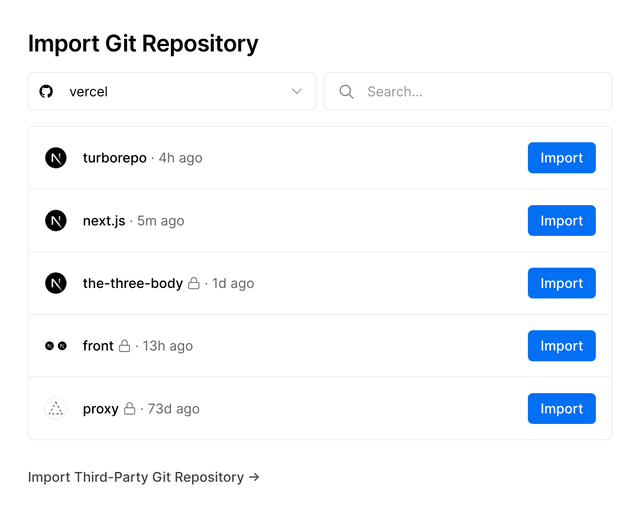


A list of repositories available from your connected Git providers.
You can also import a third-party Git repository.
After you've selected the Git repository or template you want to use for your new project, you'll be taken to a page where you can configure your project before it's deployed.
You can:
- Customize the project's name
- Select a Framework Preset
- Select the root directory of your project
- Configure Build Output Settings
- Set Environment Variables
When your settings are correct, you can select the Deploy button to initiate a deployment.
Creating a deployment from a Git reference
You can initiate new deployments directly from the Vercel Dashboard using a Git reference. This approach is ideal when automatic deployments are interrupted or unavailable.
To create a deployment from a Git reference:
- From your dashboard, select the project you'd like to create a deployment for
- Open Deployments in the sidebar. Once on the Deployments page, select the Create Deployment button
- Depending on how you would like to deploy, enter the following:
- Targeted Deployments: Provide the unique ID (SHA) of a commit to build a deployment based on that specific commit
- Branch-Based Deployments: Provide the full name of a branch when you want to build the most recent changes from that specific branch (for example, https://github.com/vercel/examples/tree/deploy)
- Select Create Deployment. Vercel will build and deploy your commit or branch as usual
When the same commit appears in multiple branches, Vercel will prompt you to choose the appropriate branch configuration. This choice is crucial as it affects settings like environment variables linked to each branch.
Deploying private Git repositories
As an additional security measure, commits on private Git repositories (and commits of forks that are targeting those Git repositories) will only be deployed if the commit author also has access to the respective project on Vercel.
Depending on whether the owner of the connected Vercel project is a Hobby or a Pro team, the behavior changes as mentioned in the sections below.
This only applies to commit authors on GitHub organizations, GitLab groups and non-personal Bitbucket workspaces. It does not apply to collaborators on personal Git accounts.
For public Git repositories, a different behavior applies.
To deploy commits under a Vercel Pro team, the commit author must be a member of the team containing the Vercel project connected to the Git repository.
Membership is verified by finding the Vercel user associated with the commit author through Login Connections. If a Vercel user is found, it checks if the account is a member of the Pro team.
If the commit author is not yet a member but has a Vercel account, they may be automatically added to the team or require approval, depending on your collaboration settings. If the commit author does not have a Vercel account, they must create one and link their Git provider before they can deploy.
You cannot deploy to a Hobby team from a private repository in a GitHub organization, GitLab group, or Bitbucket workspace. Consider making the repository public or upgrading to Pro.
To deploy commits under a Hobby team, the commit author must be the owner of the Hobby team containing the Vercel project connected to the Git repository. This is verified by comparing the Login Connections Hobby team's owner with the commit author.
If the commit author is not the owner of the destination Hobby team, the deployment will be prevented, and a recommendation to transfer the project to a Pro team will be displayed on the Git provider.
After transferring the project to a Pro team, commit authors can be added as members of that team. The behavior mentioned in the section above will then apply to them whenever they commit.
Deploying forks of public Git repositories
When a public repository is forked, commits from it will usually deploy automatically. However, when you receive a pull request from a fork of your repository, Vercel will require authorization from you or a team member to deploy the pull request. This is a security measure that protects you from leaking sensitive project information. A link to authorize the deployment will be posted as a comment on the pull request.
The authorization step will be skipped if the commit author is already a team member on Vercel.
Production branch
A Production deployment will be created each time you merge to the production branch.
When you create a new Project from a Git repository on Vercel, the Production Branch will be selected in the following order:
- The main branch.
- If not present, the master branch ( more details).
- [Only for Bitbucket]: If not present, the "production branch" setting of your Git repository is used.
- If not present, the Git repository's default branch.
Customizing the production branch
On the Environments page in the Project Settings, you can change your production branch:
- Click on the Production environment and go to Branch Tracking
- Change the name of the branch and click Save
Whenever a new commit is then pushed to the branch you configured here, a production deployment will be created for you.
Preview branches
While the production branch is a single Git branch that contains the code that is served to your visitors, all other branches are deployed as pre-production branches (either preview branches, or if you have configured them, custom environments branches).
For example, if your production branch is main, then by default all the Git branches that are not main are considered preview branches. That means there can be many preview branches, but only a single production branch.
To learn more about previews, see the Preview Deployments page.
By default, every preview branch automatically receives its own domain similar to the one shown below, whenever a commit is pushed to it. To learn more about generated URLs, see the Accessing Deployments through Generated URLs page.
For most use cases, the default preview behavior mentioned above is enough. If you'd like your changes to pass through multiple phases of preview branches instead of just one, you can accomplish it by assigning Domains and Environment Variables to specific Preview Branches.
For example, you could create a phase called "Staging" where you can accumulate Preview changes before merging them onto production by following these steps:
- Create a Git branch called "staging" in your Git repository.
- Add a domain of your choice (like staging.example.com) on your Vercel project and assign it to the "staging" Git branch like this.
- Add Environment Variables that you'd like to use for your new Staging phase on your Vercel project like this.
- Push to the "staging" Git branch to update your Staging phase and automatically receive the domain and environment variables you've defined.
- Once you're happy with your changes, you would then merge the respective Preview Branch into your production branch. However, unlike with the default Preview behavior, you'd then keep the branch around instead of deleting it, so that you can push to it again in the future.
Using custom environments
Last updated September 8, 2026
Alternatively, teams on the Pro plan can use custom environments.
Custom environments allow you to create and define a pre-production environment. As part of creating a custom environment, you can match specific branches or branch names, including main, to automatically deploy to that environment. You can also attach a domain to the environment.
Cross-link map: Deploying Git Repositories with Vercel (/docs/git)From the Vercel docs graph (built 2026-09-21T05:26:59.511Z), spanning vercel.com docs + KB, nextjs.org, ai-sdk.dev, and other Vercel documentation sites. Full graph as JSON: https://vercel.com/docs/graph.jsonSemantically closest pagesDeploying GitHub Projects with Vercel — Vercel for GitHub automatically deploys your GitHub projects with Vercel, providing Preview Deployment URLs, and automatDeploying to Vercel — Create, verify, and manage preview and production deployments on Vercel from Git, Vercel CLI, or the REST API.Deploying Bitbucket Projects with Vercel — Vercel for Bitbucket automatically deploys your Bitbucket projects with Vercel, providing Preview Deployment URLs, andDeploying GitLab Projects with Vercel — Vercel for GitLab automatically deploys your GitLab projects with Vercel, providing Preview Deployment URLs, and automaDeploy to Vercel with Self-Hosted Git Pipelines \(GitLab & Bitbucket\) — Learn how to use GitLab Pipelines to deploy to Vercel including support for self-managed GitLab.This page links to (17)Account Management — Learn how to manage your Vercel account and team members.Configuring a Build — Vercel automatically configures the build settings for many front-end frameworks, but you can also customize the build aEnvironments — Environments are for developing locally, testing changes in a pre-production environment, and serving end-users in produAccessing Deployments through Generated URLs — When you create a new deployment, Vercel will automatically generate a unique URL which you can use to access that partiAssigning a domain to a Git branch — Learn how to assign a domain to a different Git branch with this guide.Environment variables — Learn more about environment variables on Vercel.Deploying from Azure DevOps with Vercel — Vercel for Azure DevOps allows you to deploy from Azure Pipelines to Vercel automatically.Deploying Bitbucket Projects with Vercel — Vercel for Bitbucket automatically deploys your Bitbucket projects with Vercel, providing Preview Deployment URLs, andDeploying GitHub Projects with Vercel — Vercel for GitHub automatically deploys your GitHub projects with Vercel, providing Preview Deployment URLs, and automatDeploying GitLab Projects with Vercel — Vercel for GitLab automatically deploys your GitLab projects with Vercel, providing Preview Deployment URLs, and automaNotifications — Learn how to use Notifications to view and manage important alerts about your deployments, domains, integrations, accounVercel Pro Plan — Learn about the Vercel Pro plan with credit-based billing, free viewer seats, and self-serve enterprise features for proHow can I use Bitbucket Pipelines with Vercel? — Learn how to use Bitbucket Pipelines to deploy to Vercel including support for Bitbucket Data Center.How can I use GitHub Actions with Vercel? — GitHub Actions with Vercel works best when you skip duplicate builds. Learn the 4-command CLI pattern, --prebuilt flag,Deploy to Vercel with Self-Hosted Git Pipelines \(GitLab & Bitbucket\) — Learn how to use GitLab Pipelines to deploy to Vercel including support for self-managed GitLab.How can I use the Vercel CLI for custom workflows? — You can use the Vercel CLI to deploy any application, including custom git providers and restricted source code.Custom production branchPages that link here (50)By site: vercel-changelog (2) · vercel-kb (11) · vercel-web (1) · vercel-docs (36)From vercel-changelogGit repositories can now be searched for and imported easilyProjects can now be renamedFrom vercel-kbAvoiding duplicate-content SEO with vercel.app URLs and custom domains — Discover why search engines may treat your vercel.app URL and custom domain as separate pages, and how to consolidate raDeploy a Bolt.new app with Vercel Drop — Export your Bolt.new project as a .zip and deploy it to Vercel with Vercel Drop. Vercel detects the framework and buildsBuild commission-free iOS checkouts with Vercel and Paddle — A new ruling allows iOS apps to use external checkouts. Learn how to deploy a secure, high-performance external checkoutHow to use a non-default branch for production deployments on Vercel — Learn how to set a non-default branch for production on Vercel. Open the Production environment, change branch tracking,Can I use Vercel to deploy to a private cloud? — Learn about if it's possible to deploy to a private cloud with Vercel.Deploy a Claude Design project to Vercel — Publish a Claude Design project to Vercel for a live production URL with the Vercel connector, or by exporting a .zip toDeploy a Google Stitch design with Vercel Drop — Download the HTML from your Google Stitch screens and deploy them to production with Vercel Drop, with no Git or CLI reqMigrate to Vercel from Cloudflare — Migrate your website's configuration from Cloudflare Pages or Workers to VercelVercel Drop vs Cloudflare Direct Upload — Compare Vercel Drop and Cloudflare Direct Upload: framework builds, browser vs CLI workflows, file limits, Git integratiVercel Drop vs Netlify Drop — Compare Vercel Drop and Netlify Drop for drag-and-drop deployment: framework builds, static sites, updates, size limits,Export your Webflow site and host it on Vercel — Learn how to export your Webflow site's code and host it on Vercel with Vercel Drop. Drag your .zip export into the browFrom vercel-webAgentic InfrastructureFrom vercel-docsCode Review — Get automatic AI-powered code reviews on your pull requestsGetting started with Vercel Web Analytics — Vercel Web Analytics provides you detailed insights into your website's visitors. This quickstart guide will help you geBuild Features for Customizing Deployments — Learn how to customize your deployments using Vercel's build features.vercel alias — Learn how to apply custom domain aliases to your Vercel deployments using the vercel alias CLI command.vercel git — Learn how to manage your Git provider connections using the vercel git CLI command.vercel link — Learn how to link a local directory to a Vercel Project using the vercel link CLI command.Integrations for Comments — Learn how Comments integrates with Git providers like GitHub, GitLab, and BitBucket, as well as the Vercel app for SlackDeploying to Vercel — Create, verify, and manage preview and production deployments on Vercel from Git, Vercel CLI, or the REST API.Environments — Environments are for developing locally, testing changes in a pre-production environment, and serving end-users in produPromoting Deployments — Learn how to promote deployments to production on Vercel.Troubleshooting Build Errors — Learn how to resolve common scenarios you may encounter during the Build step, including build errors that cancel a deplTroubleshoot project collaboration — Learn about common reasons for deployment issues related to team member requirements and how to resolve them.Assigning a domain to a Git branch — Learn how to assign a domain to a different Git branch with this guide.Deploying & Redirecting Domains — Learn how to deploy your domains and set up domain redirects with this guide.Deploying with Vercel Drop — Vercel Drop lets you deploy a file or folder by dragging it into your browser, with no Git or CLI required.Environment variables — Learn more about environment variables on Vercel.Frameworks on Vercel — Vercel supports a wide range of the most popular frameworks, optimizing how your application builds and runs no matter wHono on Vercel — Deploy Hono applications to Vercel with zero configuration. Learn about observability, ISR, and custom build configuratiNitro on Vercel — Deploy Nitro applications to Vercel with zero configuration. Learn about observability, ISR, and custom build configuratContainer Images — Deploy OCI container images with a Dockerfile or Containerfile on Vercel Functions.How Vercel builds your application — Learn how Vercel transforms your source code into optimized assets ready to serve globally.Deploying from Azure DevOps with Vercel — Vercel for Azure DevOps allows you to deploy from Azure Pipelines to Vercel automatically.Deploying Bitbucket Projects with Vercel — Vercel for Bitbucket automatically deploys your Bitbucket projects with Vercel, providing Preview Deployment URLs, andDeploying GitHub Projects with Vercel — Vercel for GitHub automatically deploys your GitHub projects with Vercel, providing Preview Deployment URLs, and automatDeploying GitLab Projects with Vercel — Vercel for GitLab automatically deploys your GitLab projects with Vercel, providing Preview Deployment URLs, and automaIntegrating Vercel and Kubernetes — Deploy your frontend on Vercel alongside your existing Kubernetes infrastructure.Deploy a Lovable app on Vercel — Deploy your Lovable project to Vercel using GitHub sync and zero-configuration TanStack Start detection.Managing microfrontends — Learn how to manage your microfrontends on Vercel.Using Monorepos — Vercel provides support for monorepos. Learn how to deploy a monorepo here.Account Plans on Vercel — Learn about the different plans available on Vercel.Git settings — Use the project settings to manage the Git connection, enable Git LFS, and create deploy hooks.Project settings — Use the project settings, to configure custom domains, environment variables, Git, integrations, deployment protection,Static Configuration with vercel.json — Learn how to use vercel.json to configure and override the default behavior of Vercel from within your project.Managing projects — Learn how to manage your projects through the Vercel Dashboard.Transition your Hobby team after EMU enrollment — Explains the account update screen EMU members see at SSO sign-in and how to complete it.Getting started with Speed Insights — Vercel Speed Insights provides you detailed insights into your website's performance. This quickstart guide will help yo
Previous
We provide 24/7 support through various channels, including live chat, email, and phone, to assist with any queries.
Projects
Was this helpful?


