
Comments are enabled by default for all preview deployments on all new projects. By default, only members of your Vercel team can contribute comments.
 Content-Type. Additionally, on Next.js sites, the comments toolbar will only
render on Next.js pages and not on API routes or static files.
Content-Type. Additionally, on Next.js sites, the comments toolbar will only
render on Next.js pages and not on API routes or static files.
You can enable or disable comments at the account level with certain permissions:
- Navigate to your Vercel dashboard and make sure that you have selected your team from the team switcher.
- From your dashboard, open Settings in the sidebar.
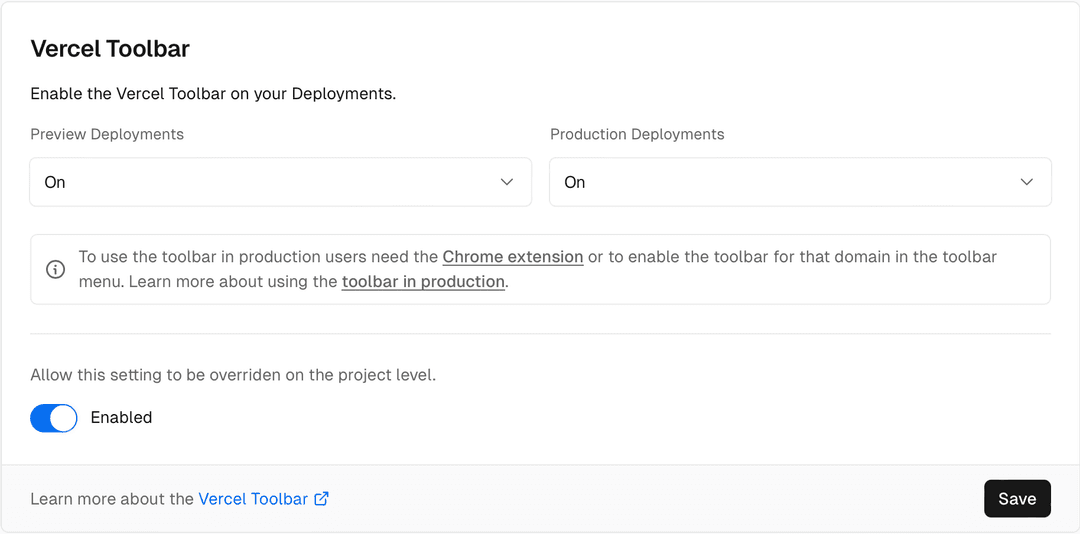
- In the General section, find Vercel Toolbar.
- Under each environment (Preview and Production), select either On or Off from the dropdown to determine the visibility of the Vercel Toolbar for that environment.
- You can optionally choose to allow the setting to be overridden at the project level.
The dashboard setting to enable or disable the toolbar at the team level.
- From your dashboard, select the project you want to enable or disable Vercel Toolbar for.
- Navigate to General in Settings.
- Find Vercel Toolbar.
- Under each environment (Preview and Production), select either an option from the dropdown to determine the visibility of Vercel Toolbar for that environment. The options are:
- Default: Respect team-level visibility settings.
- On: Enable the toolbar for the environment.
- Off: Disable the toolbar for the environment.
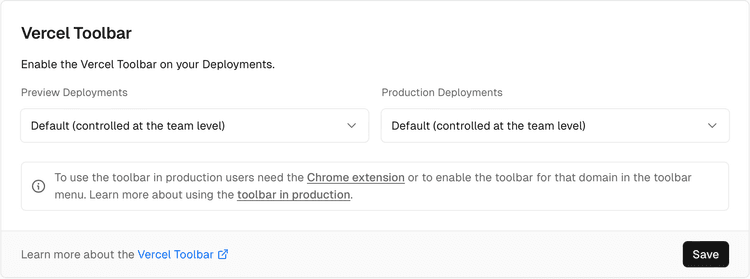
The dashboard setting to enable or disable the toolbar in a project.
Our Services
At the session or interface level
With environment variables
To use comments in a production deployment, or link comments in your local development environment to a preview deployment, see our docs on using comments in production and localhost.
In production and localhost
Previous
To disable comments for the current browser session, you must disable the toolbar.
Next
Sharing
Last updated August 11, 2026
See Managing the toolbar for more information.
You can enable or disable comments for specific branches or environments with preview environment variables.
Cross-link map: Enabling and Disabling Comments (/docs/comments/how-comments-work)From the Vercel docs graph (built 2026-09-21T05:26:59.511Z), spanning vercel.com docs + KB, nextjs.org, ai-sdk.dev, and other Vercel documentation sites. Full graph as JSON: https://vercel.com/docs/graph.jsonSemantically closest pagesComments Overview — Comments allow teams and invited participants to give direct feedback on preview deployments. Learn more about CommentsManaging Comments on Preview Deployments — Learn how to manage Comments on your Preview Deployments from Team members and invited collaborators.Using Comments with Preview Deployments — This guide will help you get started with using Comments with your Vercel Preview Deployments.Managing the visibility of the Vercel Toolbar — Learn how to enable or disable the Vercel Toolbar for your team, project, and session.Vercel Toolbar — Learn how to use the Vercel Toolbar to leave feedback, navigate through important dashboard pages, share deployments, usThis page links to (4)Account Management — Learn how to manage your Vercel account and team members.Sharing a Preview Deployment — Learn how to share a preview deployment with your team and external collaborators.Add the Vercel Toolbar to local and production environments — Learn how to use the Vercel Toolbar in production and local environments.Managing the visibility of the Vercel Toolbar — Learn how to enable or disable the Vercel Toolbar for your team, project, and session.Pages that link here (4)By site: vercel-docs (4)Comments Overview — Comments allow teams and invited participants to give direct feedback on preview deployments. Learn more about CommentsCreate React App on Vercel — Deploy Create React App projects to Vercel and add Preview Deployments, Web Analytics, Speed Insights, and ObservabilityNext.js on Vercel — Vercel is the native Next.js platform, designed to enhance the Next.js experience.SvelteKit on Vercel — Deploy SvelteKit applications to Vercel and configure the adapter, rendering, streaming, ISR, analytics, and Routing Mid
See Managing the toolbar for more information.
Software Delivery
To learn how to share deployments with comments enabled, see the Sharing Deployments docs.


