

Spend Managementis availableon Enterprise and Pro plans(Enterprise teams require the Flexible Commitment plan)
- Receive a notification
- Trigger a webhook
-
Pause the production deployment of all your projects
 Pause Production
Deployments so Vercel pauses your projects when the
amount is reached.
Pause Production
Deployments so Vercel pauses your projects when the
amount is reached.
Copy page
Spend management is a way for you to notify or to automatically take action on your account when your team hits a set spend amount. The actions you can take are:
Spend Management is available at no additional cost to Pro teams and to Enterprise teams on the Flexible Commitment plan.
The spend amount, shown as On-Demand Budget in your billing settings, is set per billing cycle.
Setting the amount halfway through a billing cycle considers your current spend. You can increase or decrease your spend amount as needed. If you configure it below the current monthly spend, Spend Management will trigger any configured actions (including pausing all projects) on its next check.
What does Spend Management include?
The spend amount applies to metered resources used by all projects on your team. What counts toward it depends on your plan:
- Pro: metered usage that goes beyond your Pro plan monthly credit
- Enterprise on Flexible Commitment: the metered usage that draws down from your prepaid balance
It does not include seats, integrations (such as Marketplace), or separate add-ons, which Vercel charges on a monthly basis.
How Vercel checks your spend amount
Vercel checks your metered resource usage often to determine if you are approaching or have exceeded your spend amount. This check happens every few minutes.
Because these checks are not continuous, notifications, webhooks, and project pausing can trigger several minutes after you cross your spend amount. Plan for this delay if you are relying on Spend Management to cap usage, and consider setting your spend amount below the absolute maximum you are willing to spend.
Managing your spend amount
Spend Management section with toggle enabled.
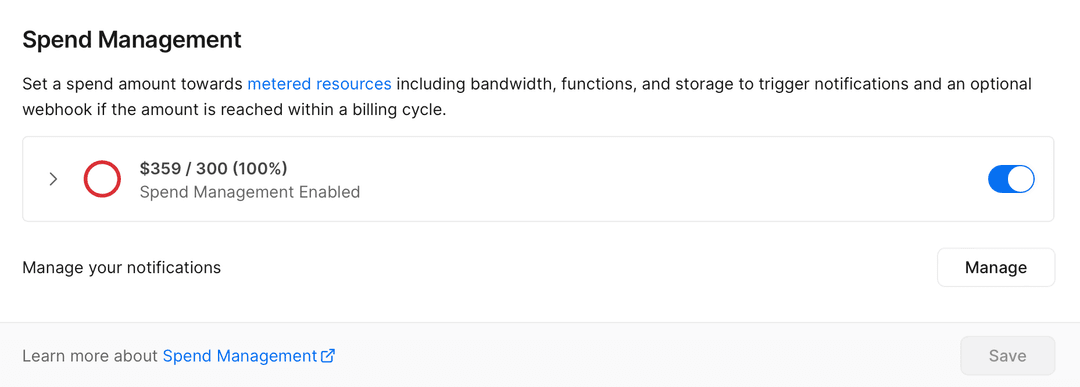
- Set the On-Demand Budget amount in USD at which you would like to receive a notification or trigger an action
- Select the action(s) to happen when your spend amount is reached: pause all your projects, send notifications, or trigger a webhook URL
Managing alert threshold notifications
When you set a spend amount, Vercel automatically enables web and email notifications for your team. These get triggered when spending on your team reaches 50%, 75%, and 100% of the spend amount. You can also receive SMS notifications when your team reaches 100% of the spend amount. To manage your notifications:
- You must have an Owner or Billing role on your team
- From your team's dashboard, open Settings in the sidebar
- Select My Notifications from the list
- Under Team, ensure that Spend Management is selected
- Select the
 Notifications
 - Repeat the previous step for the Web, Email, and SMS notification sections

SMS notifications
In addition to web and email notifications, you can enable SMS notifications for Spend Management. They are only triggered when you reach 100% of your spend amount.
To enable SMS notifications:
- You must have an Owner or Billing role on your team. Note that following these steps only configures your SMS notifications. Each member with an Owner or Billing role can configure their own SMS notifications for Spend Management
- Set your spend amount
- From your team's dashboard, open Settings in the sidebar
- Select My Notifications from the list, scroll to SMS at the bottom of the page and toggle the switch to Enabled. If your personal profile has a phone number associated with it, SMS notifications will be enabled by default
- Under Team, ensure that Spend Management is selected
- Enter your phone number and follow the steps to verify it
Pausing projects
Vercel provides an option to automatically pause the production deployment for all of your projects when your spend amount is reached. While paused, your production deployments stop serving traffic: your websites, APIs, and functions are unavailable to visitors until you resume each project.
- In the Spend Management section of your team's settings, enable and set your spend amount
- Ensure the Pause Production Deployments switch is Enabled
- Confirm the action by entering the team name and select Continue. Your changes save automatically
- When your team reaches the spend amount, Vercel automatically pauses the production deployment for all projects on your team
checks your spend every few minutes, projects can keep serving traffic and accruing usage for several minutes after you cross the spend amount.
Pausing only affects production deployments. It does not stop AI Gateway API key usage or v0 usage billed to your team, which continue to count toward your spend amount.
When visitors access your production deployment while it is paused, they will see a 503 DEPLOYMENT_PAUSED error.
Projects need to be resumed on an individual basis, either through the dashboard or the Vercel REST API.
Projects won't automatically unpause if you increase the spend amount, you must resume each project manually.
Configuring a webhook
You can configure a webhook URL to trigger events such as serving a static version of your site, pausing a project, or sending a Slack notification.
Vercel will send a HTTPS POST request to the URL that you provide when a spend amount reaches a threshold.
To configure a webhook for spend management:
Webhook payload
- In the Spend Management section of your team's settings, set your spend amount
- Enter the webhook URL for the endpoint that will receive a POST request. To be accessible, make sure your endpoints are public
- Secure your webhooks by comparing the x-vercel-signature request header to the SHA that is generated when you save your webhook. To learn more, see the securing webhooks documentation
Spend amount
Parameters
The webhook URL receives an HTTP POST request with the following JSON payload for each event:
Type
Sent when the team hits 50%, 75%, and 100% of their spend amount. For budgets created before September 2025, this is only sent at 100%.
int
budgetAmount
currentSpend
Description
The spend amount that you have set
The total cost that your team has accrued during the current billing cycle.
int
teamId
thresholdPercent
string
Your Vercel Team ID
The percentage of the total budget amount for the threshold that triggered this alert
int
{

Spend Management activity
Vercel displays all spend management activity in the Activity section in your team dashboard sidebar. This includes spend amount creation and updates, and project pausing and unpausing.
More resources
Last updated September 16, 2026
"thresholdPercent":100
"currentSpend":500,
- How are resources used on Vercel?
- Manage and optimize usage
- Understanding my invoice
- Spend limits for Vercel
Cross-link map: Spend Management (/docs/spend-management)From the Vercel docs graph (built 2026-09-21T05:26:59.511Z), spanning vercel.com docs + KB, nextjs.org, ai-sdk.dev, and other Vercel documentation sites. Full graph as JSON: https://vercel.com/docs/graph.jsonSemantically closest pagesIntroducing Spend ManagementSpend Management now available for Pro usersSpend Management now pauses production deployments by defaultImproved hard caps for Spend ManagementSpend Management expands to Enterprise Flexible Commitment plansThis page links to (15)Using the Activity Log — Learn how to use the Activity Log, which provides a list of all events on a team, chronologically organized since its crVercel AI Gateway: Models, Routing, and Observability — Call AI models from any infrastructure through a managed gateway. Centralize credentials, request logs, spend budgets, rRequest headers — Learn about the request headers sent to each Vercel deployment and how to use them to process requests before sending aLimits — Look up account limits, usage summaries, rate limits, and resource constraints for every Vercel plan.Notifications — Learn how to use Notifications to view and manage important alerts about your deployments, domains, integrations, accounVercel Enterprise Plan — Learn about the Enterprise plan for Vercel, including features, pricing, and more.Vercel Pro Plan — Learn about the Vercel Pro plan with credit-based billing, free viewer seats, and self-serve enterprise features for proPricing on Vercel — Learn about Vercel's pricing model, including the resources and services that are billed, and how they are priced.Calculating usage of resources — Understand how Vercel measures and calculates your resource usage based on a typical user journey.Manage and optimize usage — Understand how to manage and optimize your usage on Vercel, learn how to track your usage, set up alerts, and optimize yBilling & Invoices — Learn how Vercel invoices are structured for Pro and Enterprise plans, including plan charges, credits, and usage-basedProjects overview — A project is where you deploy and operate frontend apps, APIs, backends, containers, and agent workloads on Vercel.Access Roles — Learn about the different roles available for team members on a Vercel account.Unpause a project — POST /v1/projects/{projectId}/unpause — Unpause a project by passing its project \id\\ in the URL. If the project doesWebhooks API Reference — Vercel Integrations allow you to subscribe to certain trigger-based events through webhooks. Learn about the supported wPages that link here (27)By site: vercel-changelog (1) · vercel-kb (9) · vercel-docs (17)From vercel-changelogSpend Management expands to Enterprise Flexible Commitment plansFrom vercel-kbPause your project — Use a webhook to pause your project based on spend management.How to reduce Vercel Image Optimization costs — Learn how to reduce Vercel Image Optimization costs in Next.js by tuning cache TTLs, image sizes, formats, and quality.Vercel vs Akamai — A detailed guide to Vercel vs Akamai: compute models, AI infrastructure, framework support, media streaming, CDN capabilVercel vs Fastly — A detailed guide to Vercel vs Fastly: full-stack application platform vs edge infrastructure layer, covering framework sVercel vs Netlify — A detailed guide to Vercel vs Netlify: runtimes, compute architecture, AI infrastructure, security, and when to choose eVercel vs Northflank — A detailed guide to Vercel vs Northflank: Fluid compute, CDN and caching, container image functions, security defaults,Vercel vs Railway — A detailed guide to Vercel vs Railway: serverless vs always-on containers, container images via Dockerfile.vercel, frameVercel vs Render — A detailed guide to Vercel vs Render: compute models, AI infrastructure, Docker and container image support, backgroundWhy has my account or deployment been paused? — Learn why a Vercel account or deployment gets paused, from budget and usage limits to policy violations, and how to resuFrom vercel-docsPricing for Web Analytics — Learn about pricing for Vercel Web Analytics.Pricing and Limits — Understand how eve usage maps to Vercel resources and inherited platform limits.Legacy Usage & Pricing for Functions — Learn about legacy usage and pricing for Vercel Functions.Glossary — Learn about the terms and concepts used in Vercel's products and documentation.Legacy Pricing for Image Optimization — This page outlines information on the pricing and limits for the source images-based legacy option.Limits and Pricing for Image Optimization — This page outlines information on the limits that are applicable when using Image Optimization, and the costs they can iNotifications — Learn how to use Notifications to view and manage important alerts about your deployments, domains, integrations, accounAccount Plans on Vercel — Learn about the different plans available on Vercel.Vercel Hobby Plan — Learn about the Hobby plan and how it compares to the Pro plan.Vercel Pro Plan — Learn about the Vercel Pro plan with credit-based billing, free viewer seats, and self-serve enterprise features for proProduction checklist for launch — Ensure your application is ready for launch with this comprehensive production checklist by the Vercel engineering team.Managing projects — Learn how to manage your projects through the Vercel Dashboard.Vercel Sandbox pricing and quotas — Understand how Vercel Sandbox billing works, what's included in each plan, and the quotas that apply.Shared Responsibility Model — Discover the essentials of our Shared Responsibility Model, outlining the key roles and responsibilities for customers,Limits and Pricing for Speed Insights — Learn about our limits and pricing when using Vercel Speed Insights. Different limitations are applied depending on yourVercel Blob Pricing — Learn about the pricing for Vercel Blob.DDoS Mitigation — Learn how the Vercel Firewall mitigates against DoS and DDoS attacks


