Build a v0-style app builder with OpenAI Agents API and Vercel Sandbox
Build a chat-to-app workspace with live Next.js previews, follow-up edits, and saved projects using the OpenAI Agents API preview, Vercel Sandbox, and Queues.

Build an app that turns a prompt into a working Next.js application, then lets you refine the result through chat. Forma is a single-user app builder with saved projects, a conversation history, and a live preview you can pause and reopen later.
The OpenAI Agents API manages the coding agent's session and streams updates as it works. In this project, the agent connects to an executor in your own compute environment to edit files, install packages, and run commands.
Vercel Sandbox provides that environment: an isolated Linux workspace for each generated app. Its persistent file system lets you return to a project and continue editing the same code after its compute has stopped. It also provides a stable preview URL for the running app.
In this guide, you’ll learn how to make your own app builder like v0, understand its architecture, and deploy it to Vercel for everyone to use.
Deploy the template now, or follow the steps below to build it.

A Next.js app builder with chat-based editing, live previews, and saved projects you can return to.
Quick start with an AI coding agent

Help me set up and deploy Forma, a v0-style app builder, from https://github.com/vercel-labs/openai-agents-api-v0-clone. Read README.md, ARCHITECTURE.md, AGENTS.md, and .env.example before making changes. Use Node.js 24 and pnpm. Help me configure OpenAI Agents API preview access, an application key and a separate restricted executor key, a saved agent, Vercel Sandbox, and Neon Postgres. Explain how to obtain any missing credentials without putting secrets into chat or source files. Run the app locally with pnpm dev, which starts Next.js and the database worker. For deployment, configure both Vercel Queue consumers, the five-minute Cron job, pnpm vercel-build, and the signed OpenAI webhook. Use separate production credentials and a production database or Neon branch. Explain how a prompt becomes a background job, how the agent edits the sandbox workspace, and how the browser receives progress and displays the preview. Preserve each project's session and sandbox across follow-up edits. Help me verify generation, a follow-up edit, and Save & pause, followed by reopening the project.
The template repository contains the complete implementation. This guide focuses on the main integration points and the steps to run your own instance.
Vercel Plugin
Give your coding agent Vercel-specific guidance with the optional Vercel Plugin. It provides product context, skills, and commands for working with Vercel, including Next.js and deployment tasks. Install it in your coding agent's development environment. The plugin is optional.

npx plugins add vercel/vercel-plugin
Prerequisites
Before you begin, make sure you have:
- Node.js v24 and pnpm 10.34.5.
- A Vercel account and a project with access to Vercel Sandbox, Queues, and Integrations.
- Vercel CLI installed ( npm i -g vercel).
- An OpenAI project with Agents API preview access and permission to create API keys and register webhooks.
How it works
- Next.js serves the UI and backend. The builder's App Router application contains the project picker, chat, preview panel, authentication, and API routes. A prompt is saved as a background job before the server acknowledges it.
- The OpenAI Agents API performs the coding work. A saved agent defines the model and instructions. Each Forma project gets its own hosted session, which is reused for follow-up prompts.
- Vercel Sandbox holds the persistent workspace. The executor, generated source, installed dependencies, and Next.js development server live in the project's named sandbox. Stopping it saves the file system; reopening it restarts the required processes.
- Neon Postgres stores application state. Projects, session and sandbox identifiers, messages, and jobs live in the database. That saved state allows the browser to recover its view after a refresh.
- Vercel Queues delivers background work. One consumer processes edits, pauses, and resumes. Another handles OpenAI session lifecycle notifications that need executor reconciliation.
- Vercel Cron recovers pending work and stops idle compute. It periodically republishes eligible unfinished jobs and schedules idle sandboxes to stop.
- The browser observes progress and loads the preview. Server-sent events (SSE) deliver saved project and chat updates. An iframe displays the generated app from its sandbox URL.
The builder and each generated app are separate Next.js applications. The builder is deployed on Vercel; the generated apps run inside Sandbox.
Integration walkthrough
1. Set up the Next.js app
Start with an App Router project using TypeScript and Tailwind CSS:
pnpm create next-app@16.3.4 forma --ts--tailwind--eslint--app --use-pnpm --no-src-dir --import-alias
cd forma
pnpmadd @vercel/sandbox@3.2.1 @vercel/queue@0.5.1 openai@7.15.0 undici@7.29.1 pg zod lucide-react react-markdown
pnpmadd-D @types/pg tsx
The template implements the builder interface as a Client Component with a prompt composer, saved project list, conversation, and preview panel. Route Handlers under app/api handle sign-in, project reads, and requests to edit, pause, or resume a project.
Keep the handlers small: validate the request and ownership, save a job, and return its identifier. Put database operations in lib/projects.ts, background execution in lib/worker.ts, and external service calls in their own modules. This lets the deployed Queue consumer and the local worker use the same execution logic.
The template also includes shared-password authentication and same-origin checks for browser mutations. Everyone who signs in shares the same workspace. For production workflows, you should set up sign-up and sign-in flows for individual users.
2. Configure the OpenAI Agents API
Create a saved agent with instructions to build Next.js apps in /workspace, preserve the managed preview server, and check its changes before finishing. The template's creation script selects gpt-5.6 and saves the returned identifier as OPENAI_AGENT_ID.
The application uses client.beta.agents from the OpenAI TypeScript SDK, which adds the OpenAI-Beta: agents=v1 header automatically. For a new project, client.beta.agents.sessions.create() sends the following body to POST https://api.openai.com/v1/agents/sessions:
{
"agent_id":"
"environment":{
"type":"self_hosted",
"workspace_directory":"/workspace"
}
}
Save the returned session ID against the project. Start the Codex executor in that project's sandbox with --environment-id set to session.environment.id and --remote set to session.environment.remote_url. Save both values and reuse the returned URL unchanged when reconnecting. Subsequent prompts go to the same session, so the agent can continue working on the existing app.
Subscribe to the session's event stream before submitting a prompt, then save assistant text and progress as events arrive. Give each submission a stable job ID as its idempotency key so a retried request can refer to the same input.
3. Give each project a persistent sandbox
The agent needs a place to write source files, install dependencies, and run the generated app. Create a named Vercel Sandbox for each project so that those operations happen in an isolated workspace, and later edits can retrieve the same files.
For a project without an existing agent session, lib/sandbox.ts uses the following sandbox configuration:

ports:[3000],
persistent:true,
allow:[
timeout:30*60_000,
const sandbox =await Sandbox.getOrCreate({
name: project.sandbox_name,
keepLastSnapshots:{ count:2, expiration:0, deleteEvicted:true},
snapshotExpiration:0,
networkPolicy:{
"registry.npmjs.org",
"api.openai.com",
image:"vercel/sandbox/node:24",
"codex-cloud-environments.chatgpt.com",
On first use, prepare /workspace, install the executor, write the starter Next.js app, and install its packages. For a project with an existing agent session, use Sandbox.get({ name }). A missing saved workspace must surface an error instead of silently creating an empty replacement.
Persistent sandboxes snapshot their file system on stop and restore it on resume. Forma retains two snapshots without automatic expiration, so Save & pause stops compute while retained storage can still incur charges. Running processes are restarted when the project reopens.
Only the restricted executor key is passed into the sandbox. The application's OpenAI key, database connection string, and authentication secrets stay in the builder backend.
4. Store projects and jobs with Postgres
Connect a Neon Postgres database and use its pooled connection string as DATABASE_URL. The template uses pg for database access and keeps its repeatable schema in db/schema.sql.
The following four tables cover the application's state:
Table
projects
jobs
login_attempts
Ownership, sandbox name, OpenAI session, preview URL, and current status.
Counters for shared-password login throttling.
Edit, resume, and stop operations, including execution phase and worker lease.
User prompts, assistant responses, progress, and errors.
When accepting an edit, lock the project and create its job, user message, and active-job pointer in one transaction. A repeated request ID returns the existing job. So, a new edit is rejected while another operation is active.
The worker claims a job with a time-limited lease. This gives duplicate queue deliveries a way to detect work already in progress. The database also preserves unfinished jobs if publishing to the queue fails.
5. Process background work with Vercel Queues
Configure two topics using Vercel Queues: studio-jobs for project operations and studio-provision for session reconciliation. The private consumers are declared in vercel.json:
{

"functions":{
},
"app/api/queues/jobs/route.ts":{
"experimentalTriggers":[{"type":"queue/v2beta","topic":"studio-jobs"}]
"app/api/queues/provision/route.ts":{
"experimentalTriggers":[{"type":"queue/v2beta","topic":"studio-provision"}
}
exportconstPOST= queue.handleCallback<{ jobId:string}>(
import{ runJob }from"@/lib/worker";
import{ queue }from"@/lib/queue";
}
async({ jobId })=>runJob(jobId),
exportconst maxDuration =800;
After committing a job, publish its ID. The jobs consumer loads its state and calls the worker:
}
{ visibilityTimeoutSeconds:900,retry:()=>({ afterSeconds:30})},
);
OpenAI lifecycle notifications enter through /api/webhook. Verify the signature against the raw request body, then send the relevant session ID to studio-provision. Its consumer checks that the session belongs to a saved project before reconnecting an executor or handling a failed session.
6. Add recovery and idle cleanup with Vercel Cron
Add the Cron schedule alongside the Queue configuration in vercel.json:
{
"crons":[{"path":"/api/cron","schedule":"*/5 * * * *"}]
}
 docs.
docs.
Every five minutes, /api/cron republishes unfinished jobs whose leases are absent or expired. It also enqueues stop operations for inactive projects with no active job and removes expired login-throttling records. The route checks the bearer token supplied through CRON_SECRET.
Projects become eligible for an idle shutdown after 10 minutes of inactivity. Shutdown happens after the next cron run and queue delivery. An active sandbox also has its own compute timeout.
7. Connect progress and previews to the UI
Start the generated Next.js development server on 0.0.0.0:3000 inside the sandbox. Wait for a successful HTTP response before saving sandbox.domain(3000) as the project's preview URL. The studio loads that URL in an iframe, and the development server updates the preview as source files change.
After the agent finishes, the worker runs a separate production build. The starter uses BUILD_CHECK=1 to write verification output to .next-build, leaving the live server's .next directory separate. A successful build and preview readiness check mark the project ready; a failed build appears in chat so the user can request a fix.
The browser connects to an SSE endpoint that reads saved project state and messages from Neon. Refreshing or closing the page leaves the background job running. Reconnecting restores the saved conversation and status.
The iframe restricts navigation and runs on a separate origin. Its URL is accessible to anyone who has it; the builder's password does not protect generated previews.
8. Journey of a request
The complete request flow is:
- A signed-in user submits a prompt. The app saves the edit job and publishes its ID for workers.
- The worker claims the job, prepares the sandbox, and creates or retrieves the project's agent session.
- The executor connects to OpenAI, and the worker submits the prompt while recording streamed progress.
- The agent edits the app. The preview updates, and the browser receives saved chat and status changes.
- The worker checks the build and marks the operation complete. A follow-up prompt repeats the flow with the same session and files.
pnpminstall
Set up locally
Save & pause is available when no operation is active and creates a stop job. Reopening the project creates a resume job that restores the workspace and restarts its preview without sending a new coding prompt.
cd openai-agents-api-v0-clone
Clone the template and link it to your Vercel project:
vercel link
vercel env pull .env.local
Use .env.example as the checklist for the remaining settings:
git clone https://github.com/vercel-labs/openai-agents-api-v0-clone.git
In the Vercel project's Storage tab, connect Neon through the Marketplace. Select a database or branch for development and connect it to the Development environment. Pull the environment variables and local Vercel authentication:
Variable
Register a reachable /api/webhook endpoint in the OpenAI project's webhook settings and save the signing secret. The deployment steps below explain how to establish that endpoint.
OPENAI_API_KEY
OPENAI_EXECUTOR_API_KEY
Use the Neon integration's pooled Postgres connection string for development.
DATABASE_URL
Create an application key in your OpenAI project with Agents API preview access.
Create an environment key from the OpenAI dashboard’s Agents tab, under Environments → Keys.
OPENAI_WEBHOOK_SECRET
APP_PASSWORD
Run pnpm agent:create after setting the application key. The script saves the ID in .env.local.
How to obtain it
OPENAI_AGENT_ID
Choose a strong password for signing in to the shared workspace.
CRON_SECRET
VERCEL_OIDC_TOKEN
AUTH_SECRET
Generate an independent random value for signing cookies and deriving workspace ownership.
Generate another independent random value for authenticating Cron requests.
Obtain it through vercel env pull; the Sandbox SDK uses it for local authentication.
You can generate a random secret with openssl rand -hex 32; run it separately for each secret. Keep .env.local out of version control. Leave APP_URL unset locally so requests use the local origin.
For the webhook, subscribe to agent.session.action_required and agent.session.failed. OpenAI provides the signing secret when you register the endpoint. If you don't have a deployed URL yet, complete the initial deployment below, then save the returned secret locally before starting generation.
The local worker can establish executor connections directly. A production webhook only reconciles sessions present in its own database; it does not process projects stored exclusively in a development branch.
Run the app
Once the environment is configured, create the saved agent, apply the schema, and start development:
pnpm agent:create
pnpm db:migrate
pnpm dev
The agent script keeps an existing OPENAI_AGENT_ID. The development command starts both Next.js and the database worker; running Next.js by itself leaves local jobs unprocessed.
Open localhost:3000, sign in with APP_PASSWORD, and try:
Build a reading list app with book cards, a form to add a book, and filters for books I want to read and books I've finished.
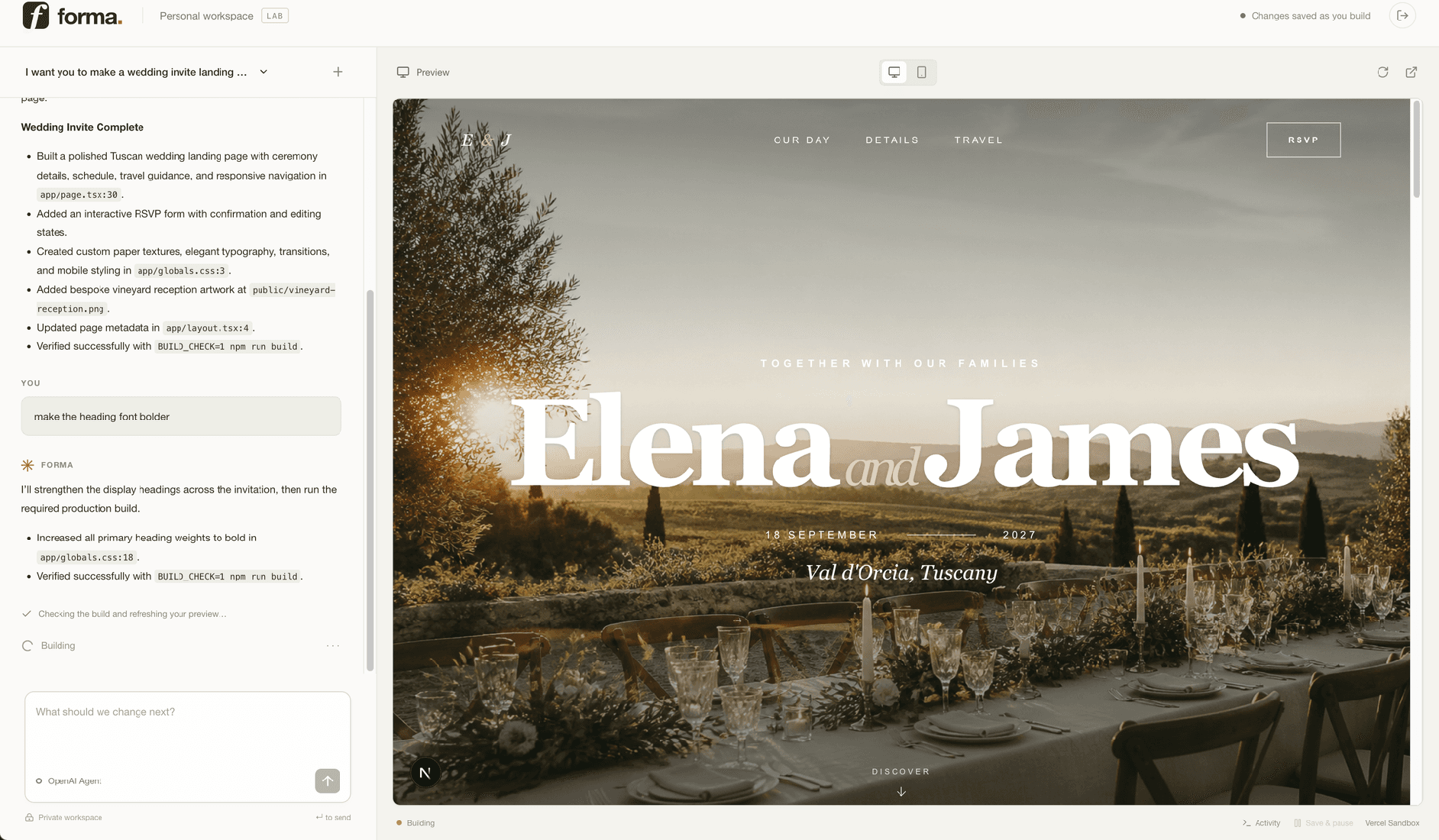


Wait for the build check, then request a change such as adding a rating control. Refresh to confirm the conversation returns. Use Save & pause, reopen the project, and check that the generated code is still there. Data entered into the generated app needs its own storage if it should survive reloads.
If local Sandbox authentication expires, pull fresh variables into a separate temporary file and copy the new VERCEL_OIDC_TOKEN into .env.local, preserving your other settings. Restart pnpm dev after changing credentials.
Deploy the app
Before proceeding with production deployment, create a production database or Neon branch and a separate set of production credentials. Within each environment, the OpenAI application and executor keys must belong to the same organization and project. Use an agent accessible to that production OpenAI project and a webhook registered for the production endpoint.
In the Vercel project settings:
- Select Next.js as the framework and Node.js 24 as the runtime.
- Set the Build Command to pnpm vercel-build. It applies db/schema.sql to the deployment’s DATABASE_URL before building Next.js.
- Add the application settings from .env.example to the Production environment, using the production database and keys. Create the production agent with pnpm agent:create in a checkout configured with the API credentials, then copy the returned ID into Vercel.
Make the initial deployment to establish its URL:
vercel deploy --prod
Generation remains unconfigured until the webhook secret is installed. In the production OpenAI project's webhook settings, register https://your-domain.example/api/webhook for agent.session.action_required and agent.session.failed. Add the returned OPENAI_WEBHOOK_SECRET to the Vercel project’s environment variables and redeploy.
Finally, sign in and verify a new project, a follow-up edit, and pause/resume. Inspect OpenAI's webhook delivery history and the provision consumer logs to confirm actual lifecycle events arrive.
Next steps
- Add per-user signup and login. Replace the shared password with individual identities, associate projects with those users, and enforce ownership throughout the API and background worker.
- Expand the background workflows. Add bounded retries, cancellation, recovery for failed agent sessions, and browser checks for generated apps. For longer tasks, save intermediate progress and require approval before publishing.
- Protect against abuse. Extend the existing login throttling with per-user generation limits, concurrency quotas, and usage budgets. Add role-based access control (RBAC) for actions such as deleting and publishing projects.
- Deploy generated apps to Vercel projects. Add a publishing flow that connects a user's Vercel account, exports the generated source, and creates a deployment after validation.
Related resources
- Learn how to Build an agentic app in FastAPI with OpenAI Agents API and Vercel Sandbox.
- Read the OpenAI Agents API docs.
- Clone and review the template repository.
- Read about Vercel Sandbox persistence.
- Learn more about the Vercel Sandbox APIs with the JavaScript SDK Reference.
- Learn how to Build an agentic app in FastAPI with OpenAI Agents API and Vercel Sandbox.
More Vercel Sandbox guides